
China internet failures rarely announce themselves clearly: the phone may show full bars while maps, payment verification, or email still refuses to load. The fix is to separate the pipe (signal, SIM, Wi-Fi, roaming) from the service (which apps can actually reach their servers).
This guide gives a symptom-first order of operations, then points you to the deeper SIM, public Wi-Fi, and VPN guides when the problem is no longer simple troubleshooting.

Troubleshooting order
Do not start with a factory reset
Most travel internet failures are setup, portal, routing, or account issues, not broken phone hardware.
First diagnosis
Separate the pipe from the service
The phone can have signal while one app still fails. Diagnose the connection layer first, then test the app layer.
Pipe
Signal, SIM, Wi-Fi, roaming, and the data line your phone is actually using.
Service
Which apps can reach their servers once the connection itself is alive.
Rule
Fix the visible symptom first, then change deeper settings only when that lane fails.
China Internet Troubleshooting: 30-Second Triage
Do not factory-reset your phone first. Pick the visible symptom, then follow that lane before changing deeper settings.
- No signal or emergency calls- Check SIM line, roaming switch, activation, and manual network selection first.
- Wi-Fi connects but pages do not open- Clear the captive portal before blaming the router or VPN.
- Local apps work, overseas apps do not- The pipe is probably alive; the issue is app reachability or VPN routing.
- Data works, then crawls or costs too much- Check roaming caps, travel-bundle fair-use rules, and which SIM is actually using data.
- Nothing helps- Use offline backups, then ask hotel, airport, carrier, or device staff based on where you are.
Use the right deeper guide once you know the lane
No Signal or SIM Activation
Start with the physical and account basics. Power off, eject the SIM tray, confirm which physical SIM or eSIM owns mobile data, then reboot. On iPhone, check Cellular Data under Cellular settings; on Android, check default data SIM and any smart-switching feature that may have moved data to a line without an active bundle.
Activation
Local mainland SIM cards, +86 phone-number service, and China-mainland carrier eSIM activation usually require real-name or ID checks before data starts: seller QR code, passport information page, and sometimes an in-store or video verification step. Travel data eSIMs and home-carrier roaming follow the provider's own account process, so check the order email before assuming every online SIM needs the same documents.
Manual network
If Searching lasts more than a minute, turn off Automatic network selection and wait for China Mobile (CMCC), China Unicom (UNICOM), or China Telecom (TELECOM). Pick the carrier your SIM or eSIM provider names.
Data balance
Bars with no data can mean the plan is empty, expired, or still waiting for second-step activation. Use the carrier app, mini program, hotline, or seller support before changing APN settings.

Crowd check
If you only get Emergency Calls in a packed airport, station, or holiday crowd, move to a window, upper concourse, or quieter street corner before you assume the hardware is broken. Short-term congestion can look like a SIM failure.
| Carrier help line | Carrier | What to know before you call |
|---|---|---|
| 10086 | China Mobile (中国移动) | Strong national network. Recent 4G/5G phones usually handle data well; check exact model, bands, and VoLTE/eSIM support if the phone is older, carrier-locked, or bought for another region. |
| 10010 | China Unicom (中国联通) | Often works well for imported phones, but do not choose by generic band advice alone. Verify your exact model, China LTE/5G bands, and VoLTE/eSIM support, then test data before leaving the counter. |
| 10000 | China Telecom (中国电信) | Good data coverage in many cities. Voice calls and SMS can depend on VoLTE/device support on older imports, so test them only if you need a +86 voice number. |
Wi-Fi Connected, Nothing Loads
Wi-Fi status icons can lie. A venue router may accept your phone while still blocking the open internet until you clear its captive portal.

Crowded venues can fake a Wi-Fi problem
In packed venues, video calls and live location may fail from capacity even after login. That is a reason to move to cellular or a quieter corner, not to keep tapping the same portal for 20 minutes.
1. Turn VPN off
Captive portals often fail while a VPN tunnel is already active. Clear the portal first, then reconnect VPN if you need it.
2. Force the portal
Open Safari or Chrome to a plain non-sensitive http page, not a cached app screen, to trigger the login page. Only enter credentials on an official venue or carrier portal; do not type card numbers, passport scans, or account passwords into a random redirect page.
3. Forget and rejoin
If the OS still says Connected, no internet, forget the network and join again. If it fails twice, switch to cellular data you trust.
Where the login pattern changes
Airports / rail hubs
Official SSID, browser portal, mobile number; some hubs add kiosks, passport login, or staffed help desks. SMS is common and foreign numbers are hit-or-miss.
Chain hotels
Front desk or key-card sleeve gives the SSID and password; some properties use room-number login. Guest Wi-Fi usually does not need SMS.
Cafes / restaurants
Staff password or table QR; some brands still jump to SMS or official-account login. The rule is brand-dependent.
Malls / scenic spots
Portal plus SMS is common; some logins may not suit foreign accounts. If it fails twice, move to cellular data.
Data Works, Apps Do Not
Separate China mobile data works from my usual overseas services load. They are related, but they are not the same test.
Local apps work
If WeChat (微信), Alipay (支付宝), and local maps refresh, your data pipe is alive. Google Maps, Gmail, WhatsApp, or other overseas services may still need a different routing setup; even when Google Maps loads, use a China-ready navigation stack from our navigation apps guide for live mainland routing.
One app fails
Clear the app cache, toggle Wi-Fi to cellular, and try 4G instead of 5G. Persistent single-app failure can be account region, server, or app-policy trouble.
Payment app fails
If Alipay, WeChat Pay, or your bank app refuses verification, turn VPN off first and retry on trusted cellular or verified hotel Wi-Fi. Security checks can also fail because of card binding, bank 3-D Secure, account risk review, or name/passport mismatches; pair this with our mobile payments guide and Alipay vs WeChat Pay comparison.
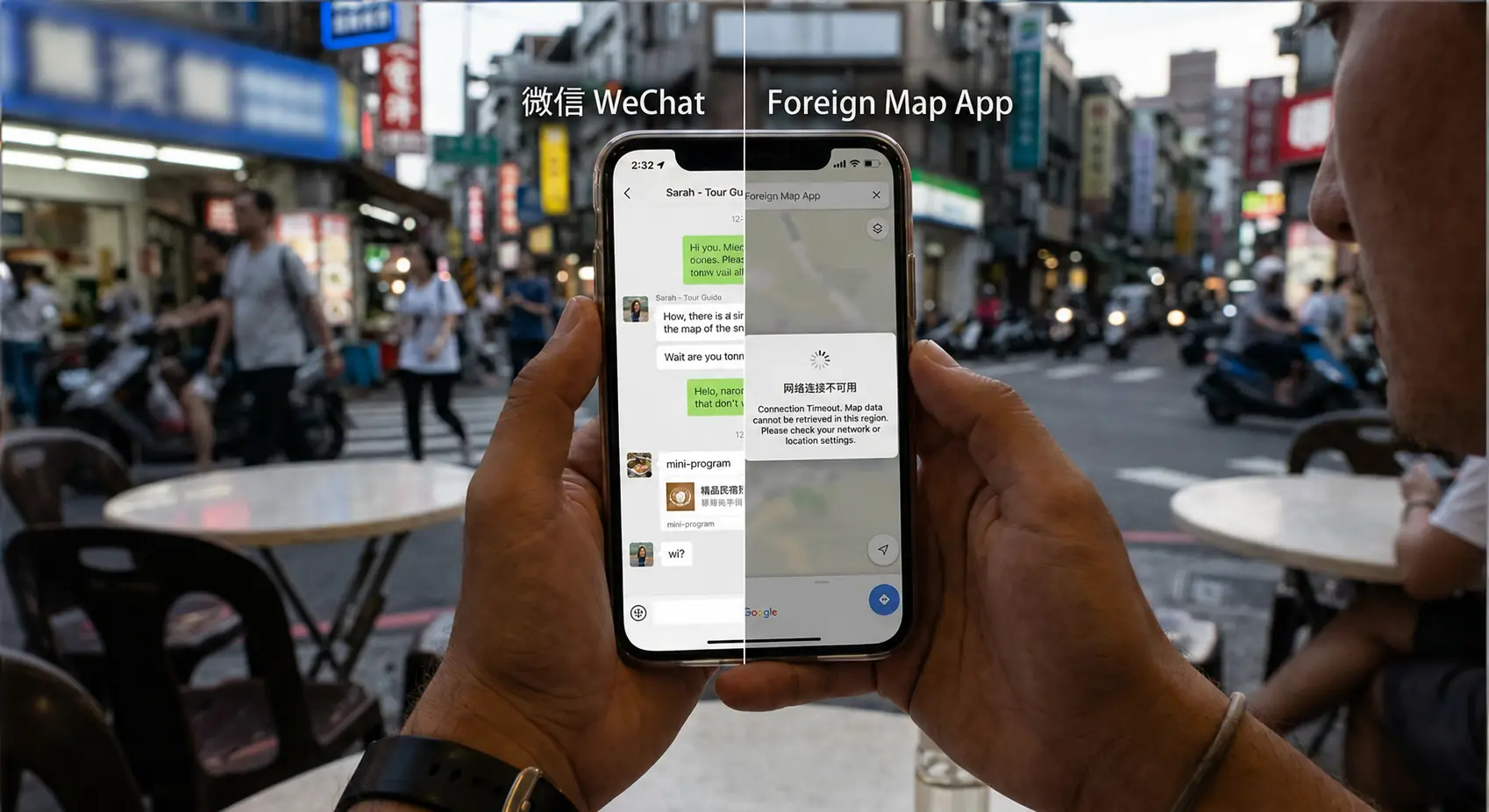
Good test sequence
First prove a local app refreshes, then test one overseas app, then change VPN or routing. That keeps app reachability separate from raw mobile data.
China VPN guide Use it for the routing layer once local mobile data is working.
Essential China travel apps guide Pair it with this article for the daily app stack.
eSIM, Dual SIM, and APN Checks
Most eSIM and APN problems come from the wrong active line, an unfinished activation step, or a provider-specific setting buried in the order email. Work through this order before manually editing APN fields.
Before editing APN fields
- Confirm which SIM is the data SIM. Dual-SIM phones can use one line for calls and another for data; mixed defaults cause ghost searching.
- Turn data roaming on if your eSIM, travel SIM, or home carrier requires roaming to pass data in China.
- If an eSIM QR code failed, check whether the code expired or was already used. Ask the issuer for a fresh profile instead of repeatedly scanning the same QR.
- China-mainland carrier eSIM is a special case, limited by device model, carrier-store activation, and ID/passport checks. Treat it separately from overseas travel eSIMs and roaming eSIMs; check Apple and carrier support before relying on it.
- If an installed eSIM keeps searching, turn off Automatic network selection and pick the carrier your eSIM provider names.
- If a quota shows but speed stays at zero, look for second-step activation, passport real-name prompts, a data-package balance screen, or a provider note about mainland roaming partners.
APN rule
Reputable travel eSIMs and retail SIMs from China Mobile (中国移动), China Unicom (中国联通), and China Telecom (中国电信) usually auto-provision APN. Screenshot your current APN first, and touch APN settings only when your issuer tells you to, or when others on the same plan work and your phone alone does not. If you are still choosing a plan, compare the tradeoffs in our China eSIM comparison.
When to stop changing settings
If manual carrier selection, APN, and roaming all fail, stop changing settings and contact the seller or carrier with your order number, ICCID, phone model, and screenshots of the cellular settings page.
China Mobile (中国移动)
cmnet
Use only if auto-provisioning fails or your issuer tells you to set it. Do not copy this into a travel eSIM unless that provider says so.
China Unicom (中国联通)
3gnet / wonet
Use the value in your plan email; both labels appear in Unicom support contexts. Do not copy this into a travel eSIM unless that provider says so.
China Telecom (中国电信)
ctnet
Check whether the profile also needs username or password fields from the issuer. Do not copy this into a travel eSIM unless that provider says so.
Fast digital fallback
Need a working backup data line without visiting a carrier counter?
If your current eSIM QR expired, home roaming throttled to a crawl, or a local SIM still needs in-person activation, installing a separate short-term Mainland China travel eSIM over hotel or airport Wi-Fi is often the quickest recovery path.
Before paying, confirm your phone is carrier-unlocked and supports overseas travel eSIMs (phones bought in mainland China generally do not), and read the package's data cap, validity start rule, hotspot allowance, and refund terms.
Check China travel eSIM data plans on Trip.com
Affiliate link: we may earn a commission at no extra cost to you. This listing covers multiple package tiers; verify device compatibility and exact plan terms at checkout.
Pocket Wi-Fi, Roaming, and VPN Problems
These three failures feel similar because the symptom is the same: you are technically online, but the connection is slow, unstable, or unexpectedly expensive.
Pocket Wi-Fi
Device first
Charge it, restart it, keep your phone within one meter while reconnecting, then forget and rejoin the SSID. Many rental units cap the number of connected devices, so disconnect tablets and spare phones before blaming the network.
Roaming
Check the cap
International roaming and travel bundles can slow down after heavy use. If WeChat text works but uploads die, check fair-use rules and confirm which SIM line is burning data.
VPN
Portal before tunnel
Clear hotel or mall Wi-Fi login before turning VPN on. If VPN connects but crawls, try a nearby server such as Hong Kong, Japan, or Singapore, then use your provider's recommended protocol or obfuscation mode where lawful and available. Do not make an untested free VPN your only access plan.
If pocket Wi-Fi still fails, contact the rental provider with the device ID printed on the unit and your order number. If VPN keeps breaking payment or banking checks, turn VPN off for that verification step and use trusted cellular data where possible. VPN availability can change, so keep local apps and offline backups ready even if your usual setup worked at home.
Banking and VPN do not mix well
If Alipay, WeChat Pay, or your bank app refuses to verify while VPN is on, turn the VPN off first and use trusted cellular data where possible. These apps perform location and security checks that VPN routing can trigger as suspicious; if it still fails, check card binding, name/passport details, bank 3-D Secure, and the app's own risk prompts before changing phone settings again.
Public Wi-Fi Safety Habits
Safety habits matter most when you are already frustrated. A broken portal is annoying; typing card numbers into the wrong page is worse.
Connection hygiene
- Prefer HTTPS: look for the lock on banking, mail, and wallet flows. Captive portals may be plain HTTP for login, but they are not the place for card numbers.
- Disable auto-join for unknown open networks so your phone does not attach to lookalike SSIDs.
Money and app safety
- Defer high-stakes money tasks such as first-time card binding, wallet verification, bank logins, and primary email or account resets until you are on cellular you control or verified hotel Wi-Fi with the correct SSID. A passworded network is not automatically safe if it is a lookalike.
- Skip random Wi-Fi master APKs from popups. Rely on the phone's built-in security center and official app stores.
- VPNs do not replace HTTPS hygiene. They can help with routing, but careful SSID choice and secure pages still matter.
Offline Backups and Local Help
When every network option fails, offline preparation turns the problem from a travel emergency into an inconvenience.
Before trouble
Download offline maps, translation packs, hotel addresses in Chinese, ticket QR codes, booking confirmations, and emergency contacts. Add ICCID/order emails, an eSIM QR backup where your provider allows it, bank emergency numbers, 2FA backup codes, your VPN support page, and screenshots from Trip.com or other booking apps. Our navigation apps guide covers map backups.
Second data source
If constant connectivity matters, carry a second option: home roaming plus travel eSIM, local SIM plus pocket Wi-Fi, or two travelers on different providers. For an unlocked eSIM-capable phone, you can also keep a low-cost backup ready via Trip.com China travel eSIM plans(affiliate link · may earn commission, no extra cost) and verify the activation window before departure.
Help order
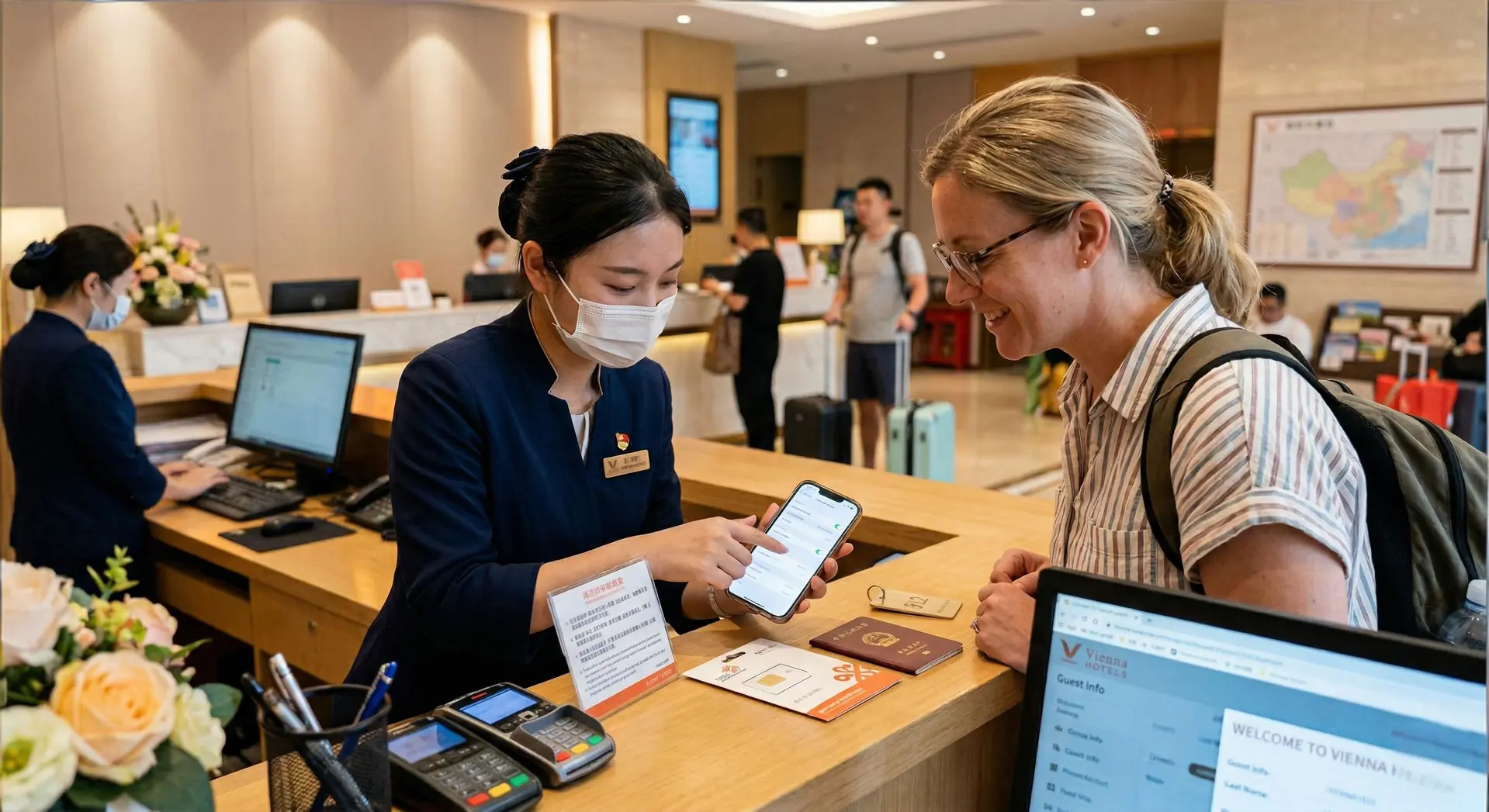
Ask the hotel front desk first, then airport information or carrier counters with passport in hand, then brand stores or authorized service for hardware faults.
Carry the proof
Carry passport, ICCID, purchase emails, and screenshots of the error page. For local SIM or mainland carrier eSIM problems, include your phone model and any real-name verification screen. Carrier activation and seller support still run through the carrier, airport counter, or eSIM issuer.
Frequently Asked Questions
Treat SMS as unreliable on foreign numbers: switch to cellular data you control, try desk help at transport hubs, or follow the venue patterns in our public Wi-Fi guide. Do not keep spamming resend in a crowded concourse.
Sources checked for this guide
- Apple support on China-mainland iPhone eSIM support, supported models, carrier-store activation, and ID checks.: Apple China mainland eSIM support
- Apple support on captive Wi-Fi login behavior and opening a browser login page after joining a network.: Apple captive Wi-Fi support
- Apple support on dual-SIM and eSIM data-line selection, including choosing which line uses cellular data.: Apple dual SIM support
- China Mobile support page for manual APN/network setup, including CMNET context for mobile data settings.: China Mobile APN setup
- Tourist China Unicom SIM support material covering activation, real-name registration, and mobile data setup context.: China Unicom tourist SIM support
- China Telecom support page for manual mobile data setup, including CTNET APN context.: China Telecom APN setup
- FTC consumer guidance on public Wi-Fi safety, HTTPS, and avoiding sensitive activity on insecure shared networks.: FTC public Wi-Fi safety
- Internet Society Pulse incident note on blocked overseas services and changing VPN reachability in China.: Internet Society Pulse China blocking note
- Shanghai municipal English portal note on airport free Wi-Fi improvements and support for inbound foreign passengers.: Shanghai airport Wi-Fi support
- Beijing municipal English portal note on Daxing Airport passport-accessible free Wi-Fi for foreign travelers.: Beijing Daxing passport Wi-Fi
Beyond This Guide
Layer your setup in three parts: mobile data, venue Wi-Fi, and reach for overseas services. Then add the app and offline backups that keep day one calm.
VPN Reach for overseas services after local data works.
Navigation apps Map backups before signal or app routing breaks.
Translation apps Offline language help when the phone stack is fragile.
Tell us your cities, phone model, and comfort level with apps. We recommend realistic setup stacks and offline backups for your trip; we do not book tickets, buy SIMs, configure devices, or move money on your behalf.
© gochinafreely.com — Original guide by Go China Freely.